
The functions of an LLM interface
We use ChatGPT as an example because it was the first LLM to reach the general public and remains the most widely used. Other interfaces work in a similar way, with the exception of Claude, which has built a more complete production system around its models, initially aimed at the business world, and which we’ll talk about in the next chapters.
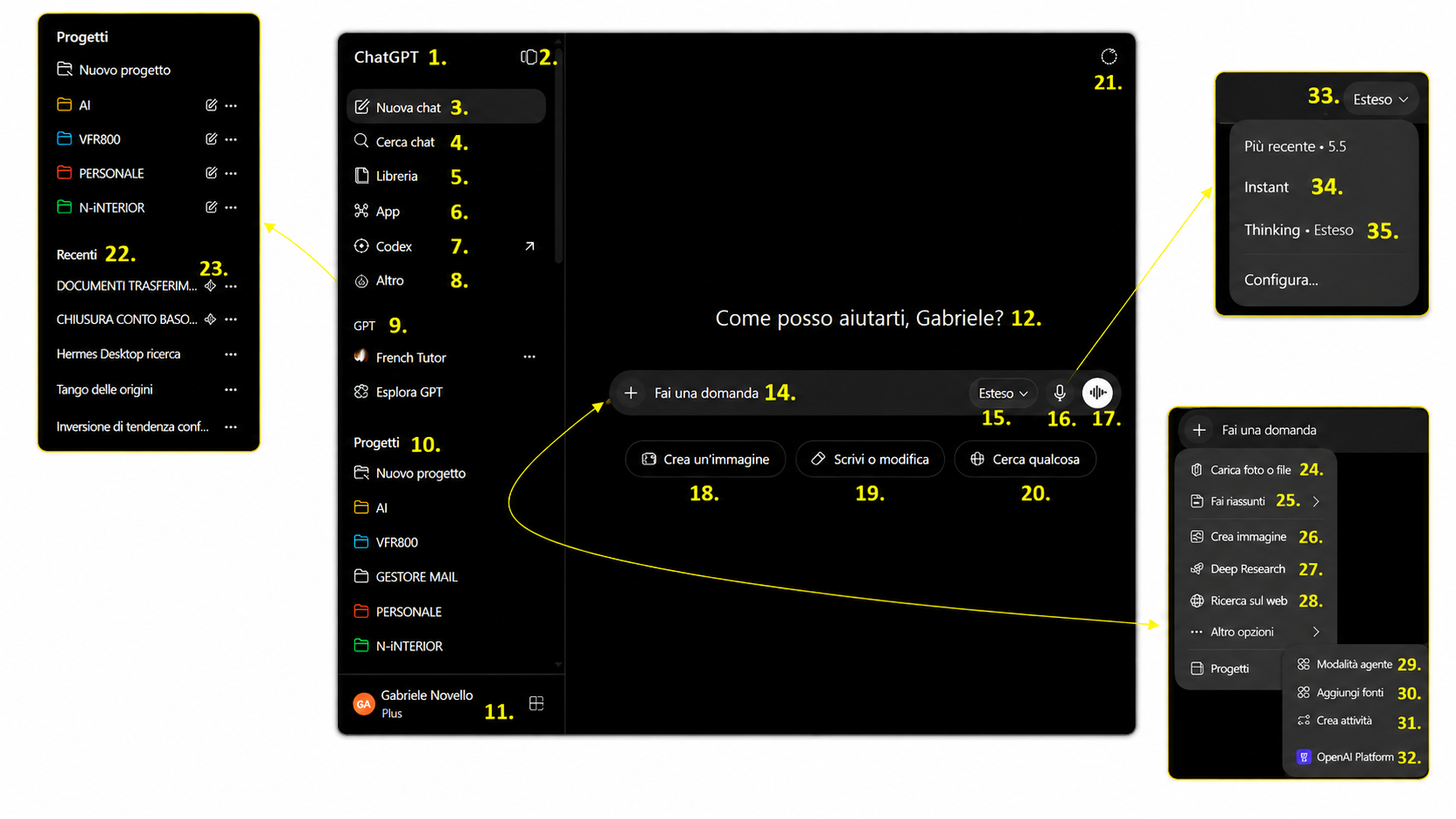
- ChatGPT — returns to the main screen.
- Show/hide sidebar — opens or closes the left-hand menu.
- New chat — starts an empty conversation.
- Search chats — searches through past conversations. If you know you discussed a certain topic but don’t remember in which chat, one word is enough and it will show you all the chats that contain it.
- Library — area for saved files, images, and content. It stores all the files, in every format, that you’ve saved over time, across all chats, including those you generated with ChatGPT.
- Apps — opens available apps/integrations in ChatGPT. Do you have a large amount of sources saved on Drive, Notion, GitHub? There’s no need to copy the files one by one, ChatGPT will connect to your repositories and read them directly from there, once authorized. It’s mainly used for reading. Write actions and any deletion are only possible with apps or connectors configured specifically for that purpose, with the appropriate permissions and user confirmation or admin control.
- Codex — environment/assistant for programming tasks. Programming is a vast topic; from here you have access to Codex, a very powerful framework that acts as a junior programmer and technical assistant for those who code, and as an interface for quickly creating prototypes, landing pages, small apps, dashboards, internal tools, automations, and MVPs.
- More — menu with additional functions.
- GPTs — section for custom or saved GPTs, which are customized versions of ChatGPT configured to perform specific tasks. If you need to do something specific, before writing long prompts to explain to ChatGPT what you want to achieve, try searching the GPT library: for example, you can find French tutor, a tutor for learning French; Grimoire, for learning the basics of vibe coding; Books GPT, reading recommendations; CK-12 Flexy, for math and science; Copywriter GPT, for advertising writing; Consensus, for research and summaries of scientific papers, etc.
- Projects — groups chats, files, and instructions dedicated to a specific piece of work. This way, ChatGPT doesn’t start from scratch every time, but stays within a specific context: a course, a website, an administrative matter, a technical project, a piece of research. Each project can have its own rules, its own files, and shared memory across the different chats, and projects can also be shared among multiple users working on the same project. This is one of the most powerful features of modern LLMs.
- Account — profile, plan, settings, and account management. It also contains a section on the tone ChatGPT should use in all chats, although it’s not always effective.
- Starting message — central area of the new chat. It changes “cheerfully” from time to time.
- ”+” button — opens upload, tools, and additional options.
- Prompt field — where you write your request.
- Mode/model selector — changes the response mode. Depending on the model you choose, the following parameters change: response speed, depth of reasoning, token consumption, and therefore money spent. As far as I’m concerned, it’s almost always better to use the higher-performance model, unless you really have a lot of work to do and a limited budget.
- Microphone — dictates a voice message. It works very well and understands what you say even in fairly noisy environments, so in practice, you dictate instead of typing.
- Voice — starts a voice conversation. This function isn’t a microphone; it literally lets you talk with the LLM! The latest versions of GPT-Live let you interrupt ChatGPT’s response, just as you might in a normal conversation; the voice has truly human inflections and nuances, and, as with the microphone, its ability to understand what we’re saying is very good; I sometimes use it in the car for light topics because there’s no need to click on anything.
- Create an image — generates or edits images. It’s not ChatGPT (the LLM) itself that generates the image, but a text-to-image engine is called that reads the prompt and creates it. Image generation is extremely powerful for ideation, visual communication, and first drafts. It’s less reliable when you need absolute precision, strict layout, perfect text, technical diagrams, or identical consistency across multiple images.
- Write or edit — opens writing/editing tools. It opens quick tools for working on a text: rewriting it, correcting it, summarizing it, or transforming it. It’s useful when you already have some content and want ChatGPT to work on it without having to write a full prompt every time.
- Search for something — enables web search. It’s used to explicitly tell ChatGPT to use the web. Today ChatGPT can also search automatically, but this button forces search mode: it’s useful when you need up-to-date data, sources, prices, news, regulations, products, or local information.
- Temporary chat — a chat that isn’t saved in the history; it still goes to OpenAI’s servers, though.
- Recent — list of the latest conversations in chronological order.
- Pin chat — keeps a conversation highlighted, making it appear higher up than its chronological order would suggest; I also put the titles in capital letters, but that’s a personal choice.
- Upload photos and files — attach images or documents. If you have PDFs, photos, .doc files, Excel spreadsheets, Google Sheets, and other files that might be useful for your research, this is the button you use to attach them to the prompt, and you’ll also find them in the Library alongside those you had ChatGPT generate.
- Recent files — retrieves recently used files. The most recently uploaded or produced files.
- Create image — quick access to image generation. It tells ChatGPT that you want to create an image, but it isn’t strictly necessary, since writing it in the prompt has the same effect.
- Deep Research — in-depth, multi-step research on the web. Deep Research is an automated researcher: very useful for getting your bearings and producing documented reports, but the citations are no absolute guarantee. Sources need to be opened, checked, weighed, and listed at the bottom. Best used when the topic is important and broad.
- Search the web — looks up up-to-date information online. Enables web search, exactly like “Search for something” (20).
- Agent mode — enables more autonomous and operational activities. This function is meant to combine Deep Research’s capabilities with more advanced autonomous features, but it isn’t well optimized yet.
- Add sources — links or selects external sources. Not just files but also apps, repositories, projects, and connectors, depending on what’s available in your account.
- Create task — schedules reminders or automatic tasks. It lets you run a prompt in the future, at a certain time, either once or on a recurring basis. It can send push notifications or emails, even if we’re not online. It’s handy for small informational automations, not for critical workflows.
- OpenAI Platform — Well… a strange, not-well-defined feature, not useful for users who don’t code, and probably not very useful even for those who do.
- Mode menu — The box in the top right lets you choose the model, mode, and depth of reasoning. Today, in the screenshot, the main model is GPT-5.6, but this part will change often: models are updated continuously. The two modes are explained further below, while the reasoning depth — Extended or Standard — determines how much time the model spends on the problem. Standard is enough for most uses. Extended is worth it when the answer matters, is difficult, or requires a lot of precision.
- Instant — mode for faster responses, with less explicit reasoning. This is the fastest mode, suited to normal use: simple questions, texts, translations, summaries, quick explanations. It doesn’t mean it “doesn’t reason,” but that it prioritizes speed and fluency.
- Thinking · Extended — mode for more carefully reasoned responses, suited to complex tasks. Thinking is better suited to complex tasks: analysis, code, logic, math, planning, comparisons with many constraints. It’s slower and uses more resources, but it usually handles difficult problems better.